
Installation guide
Install Strike
Install it over ADB from a computer or your phone, then switch on recording.
Before you start
- Park the car and keep the head unit on.
- Put the car and your computer or phone on the same Wi-Fi.
- ADB must be on at port 5555. Installing Strike can't turn it on.
Install from
Get an ADB tool
Download Google's Platform-Tools, unzip it and open a terminal in the platform-tools folder.
Get Platform-ToolsConnect to the car
Find it in the car's Wi-Fi settings, or scan your network with an app like Network Analyzer or Fing.
.\adb.exe connect CAR_IP:5555.\adb.exe devicesIf the car asks Allow USB debugging?, allow it.
The car must show as device, not unauthorized.
Install the app
.\adb.exe -s CAR_IP:5555 install -r "$HOME\Downloads\Strike.apk"Wait for Success. If Strike.apk isn't in Downloads, change the path.
Start recording
- Open Strike on the car and allow storage and microphone.
- In Services, if Shell access isn't ready, select Connect and accept the prompt on the car.
- In Recordings → Settings, set Mode to Continuous or Driving only and pick a Storage.
- In Services, turn on Recorder.
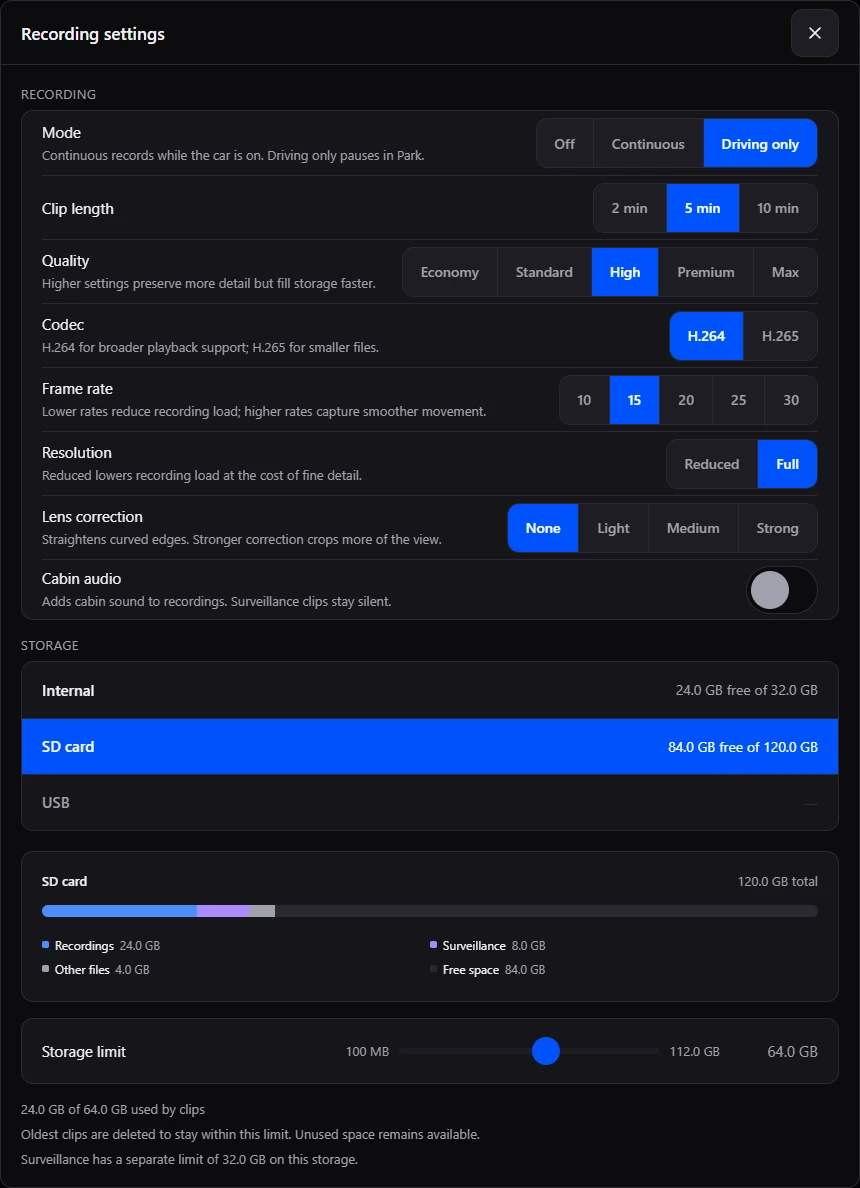
Watch while parked
- In Surveillance → Settings, turn on Watch the car when it is off.
- Pick Smart for person and vehicle events, or Continuous.
- Keep Recorder on in Services.
Test a parked session on your car before you rely on it.
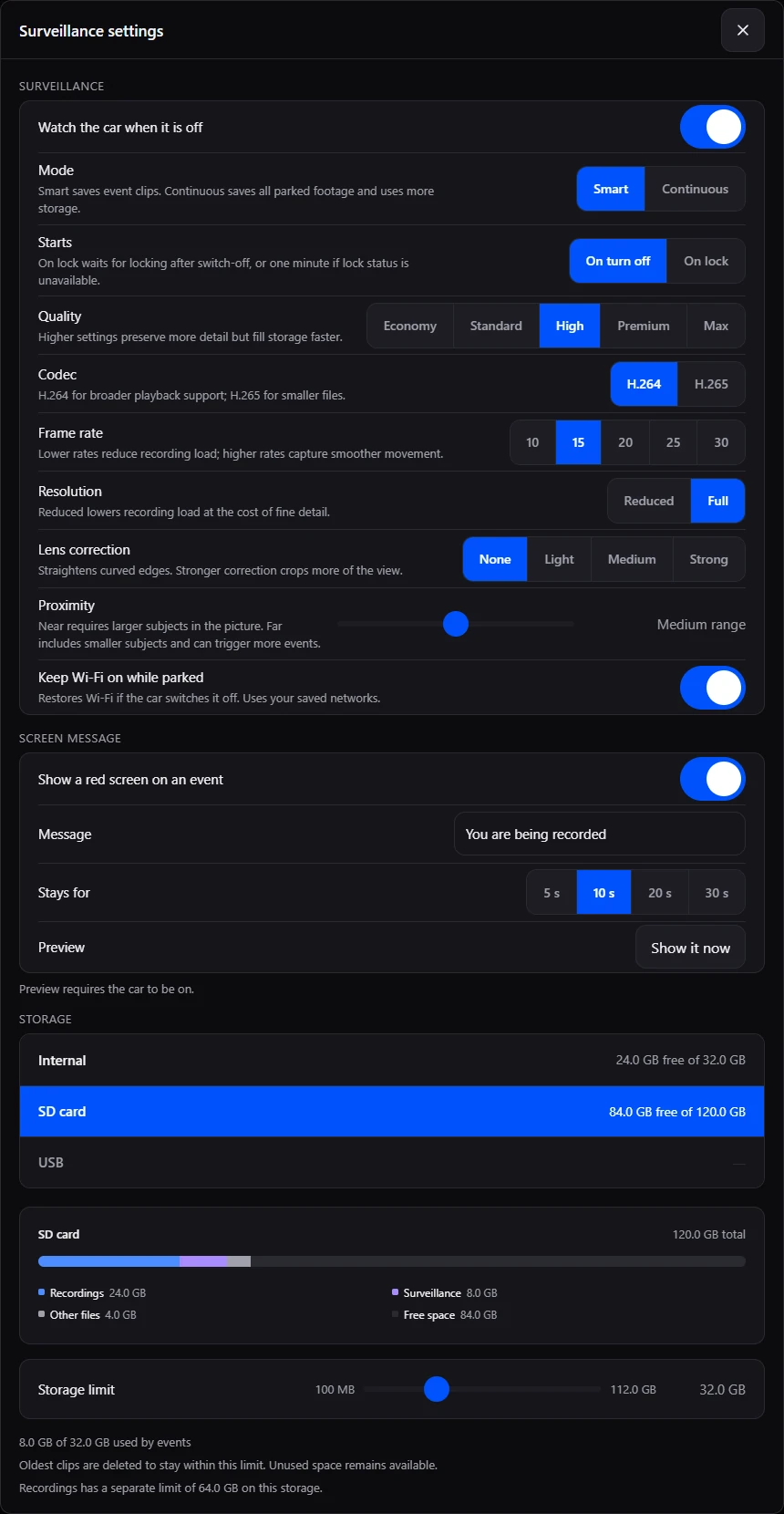
Updating
Update from Settings → Updates in the car. Never uninstall Strike to update: that resets its settings.
Troubleshooting
Still stuck?
Ask on DiscordAsk on Discord with your car model, Strike version and the exact error.